Best Screen Recording Tools for Students
For most students, Microsoft Clipchamp gives away the most: it runs in any web browser, has a full video editor, and its free plan exports up to 1080p with no watermark. On a Mac with a video due tonight, QuickTime Player is already on the machine, and on Windows the Xbox Game Bar starts recording with Windows key plus Alt plus R.
The thirteen tools here part ways on two walls rather than on features. The first is how long the free version lets you record, which runs from 5 minutes per video on Loom to 30 on Screencastify. The second is whether the tool will run on the laptop you were handed: a school Chromebook leaves you the two Chrome extensions, Screencastify and Screenity, Clipchamp in a browser tab, and ScreenPal, while a personal Windows machine opens up OBS Studio, ShareX and Bandicam.
Our picks
- Record and edit without paying: Microsoft Clipchamp. Full video editor in a browser tab, free exports up to 1080p, and no watermark on the free tier.
- A locked-down Chromebook or lab machine: Screenity. A Chrome extension whose recording, drawing and blurring are free; only the hosted editor and share links need a paid account, so a file to hand in never hits the paywall.
- A Mac and a deadline tonight: QuickTime Player. Built into your computer: File, New Screen Recording, and the file is yours, with trimming and rearranging clips as the only edits.
- Narrated presentations you want to tighten: Descript. You edit the video by deleting words from its transcript; the free plan allows 1 hour of media per month.
- Slides already built in Canva: Canva. Up to 25 minutes per recording, no watermark, and the clip lands in your uploads ready to drop into the deck.
At a glance
| Option | Cost | Cheapest paid plan | Runs on | Free version limits | Editing tools |
|---|---|---|---|---|---|
| Freesource | None: free and open sourcesource | Windows, Mac & Linuxsource | |||
| Free plan with paid upgradessource | $18 per user / monthsource | Windows & Macsource | 5 minutes per videosource | Trim and cut onlysource | |
| Free plan with paid upgradessource | $7 per user / month, billed annuallysource | Chrome extensionsource | Up to 30 minutes per videosource | Trim and cut onlysource | |
| Free plan with paid upgradessource | $4 per month, paid annuallysource | Windows & Macsource | Up to 15 minutes per recordingsource | Full video editorsource | |
| Free plan with paid upgradessource | Premium features come with a Microsoft 365 subscriptionsource | Any web browsersource | Exports up to 1080psource | Full video editorsource | |
| Free plan with paid upgradessource | $39.00 per year (Starter)source | Windows & Macsource | Exports carry a watermarksource | Full video editorsource | |
| Free plan with paid upgradessource | $16 per person / month billed annually ($24 monthly)source | Windows & Macsource | 1 hour of media per monthsource | Full video editorsource | |
| Free plan with paid upgradessource | US$144 per year for one person (Canva Pro)source | Windows & Macsource | Up to 25 minutes per recordingsource | Full video editorsource | |
| Freesource | None: completely freesource | Windows onlysource | |||
| Built into your computersource | Mac onlysource | Trim and cut onlysource | |||
| Built into your computersource | Windows onlysource | A maximum clip length you set yourselfsource | |||
| Free plan with paid upgradessource | $10 per monthsource | Chrome extensionsource | Sharing needs a paid accountsource | Full video editorsource | |
| Free plan with paid upgradessource | $33.26 per yearsource | Windows onlysource | Up to 10 minutes per recordingsource | Trim and cut onlysource |




How long each free plan lets you record
Line the free caps up and the choice for a graded presentation gets clearer. Loom stops at 5 minutes per video, Bandicam at 10, ScreenPal at 15, Canva at 25 and Screencastify at 30. Screencastify's length is generous, but its summary notes a hard cap of ten videos on the free tier, so a semester of weekly recordings will run into it.
Some tools cap something other than minutes. Camtasia lets you use the whole editor free, but every export carries a watermark. Descript meters the free plan in media hours, 1 hour per month, and caps free exports at 720p, as does Loom. Screenity records freely and only charges for its hosted editor and share links. OBS Studio and ShareX are free outright with no paid plan at all.
Why the paid plan prices don't line up
The Cheapest paid plan column is worded the way each maker prints it, and the billing periods differ. Loom is $18 per user per month, Screenity $10 per month, Screencastify $7 per user per month billed annually, ScreenPal $4 per month paid annually. Camtasia's Starter plan is $39.00 per year, Bandicam $33.26 per year, and Canva Pro US$144 per year for one person. Descript shows two figures, $16 billed annually or $24 month to month, and Clipchamp's premium features come with a Microsoft 365 subscription rather than a plan of their own.
ScreenPal's plans page was still showing a 25% off banner for a sale that ended on September 2, so we recorded the $4 list price. If that sale keeps running, the cell reads a dollar high.
Chromebook, Windows or Mac: what will run
Five tools are listed as Windows & Mac desktop apps: Loom, ScreenPal, Camtasia, Descript and Canva. On a school Chromebook, Screencastify and Screenity install as Chrome extensions, Clipchamp works in any web browser, and ScreenPal's summary adds that it runs on Chromebooks as well. Canva is the odd one: its recorder lives only in the desktop app, not the browser version.
Three are Windows only: ShareX, Xbox Game Bar and Bandicam. QuickTime Player is Mac only, and OBS Studio is the one tool here that also runs on Linux.
The options in detail
OBS Studio
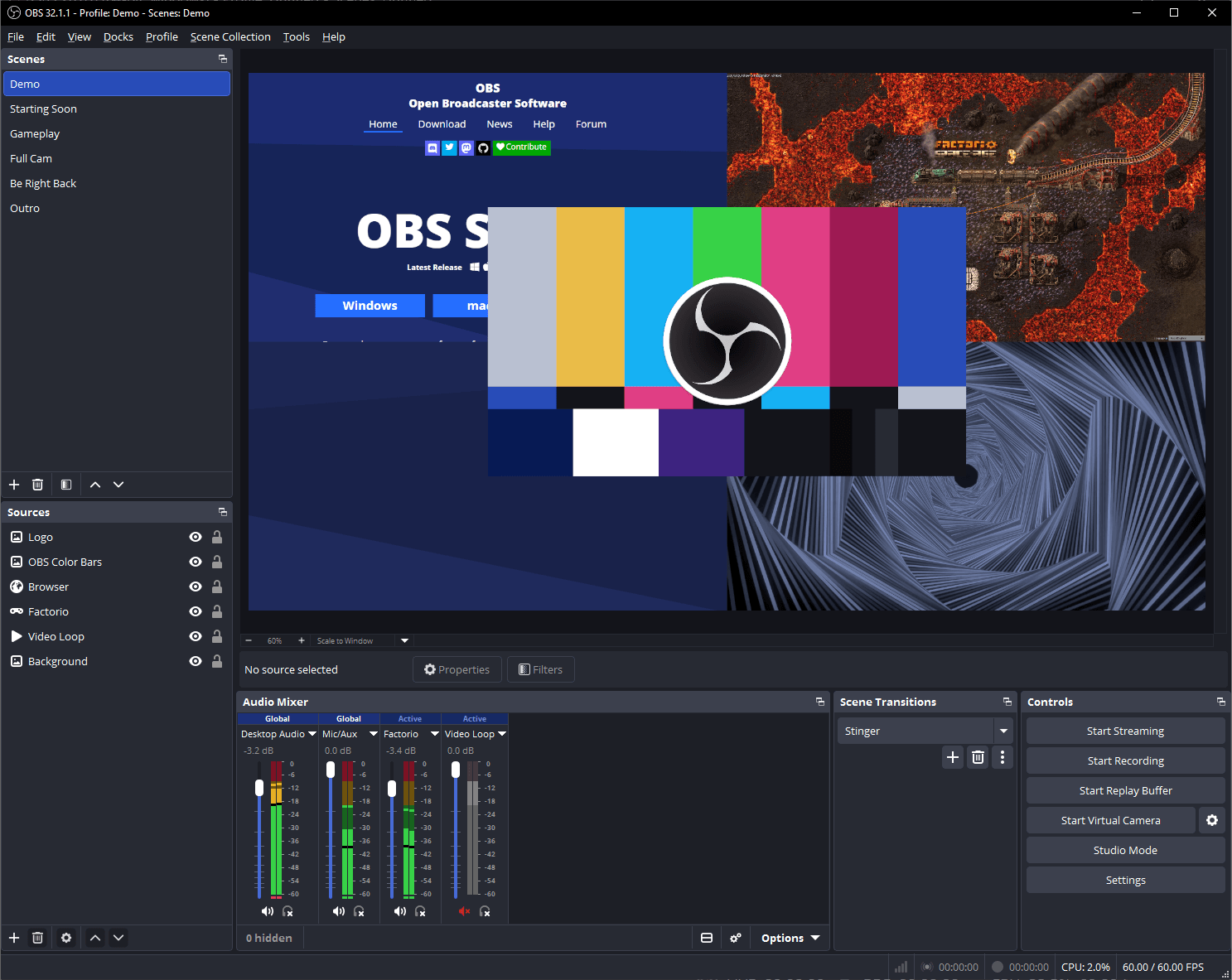
The free, open-source recorder that broadcasters use, and the one to reach for when nothing is allowed to cap your recording. You build a scene out of sources (a window, a webcam, a slide deck, a mic) and record or stream it at whatever quality your machine can handle. The trade-off is the learning curve: the first launch shows a mixing desk rather than a record button, and there is no editor afterwards, so you finish the video somewhere else.
Loom
Loom is built around sending a recording rather than saving one: you stop recording and the shareable link is already copied. That makes it the easy pick for a quick explainer to a study group or a video reply to a professor, and the transcript and captions come free. The free plan is the catch for coursework, because five minutes per video is short for a presentation and the free tier tops out at 720p.
Screencastify
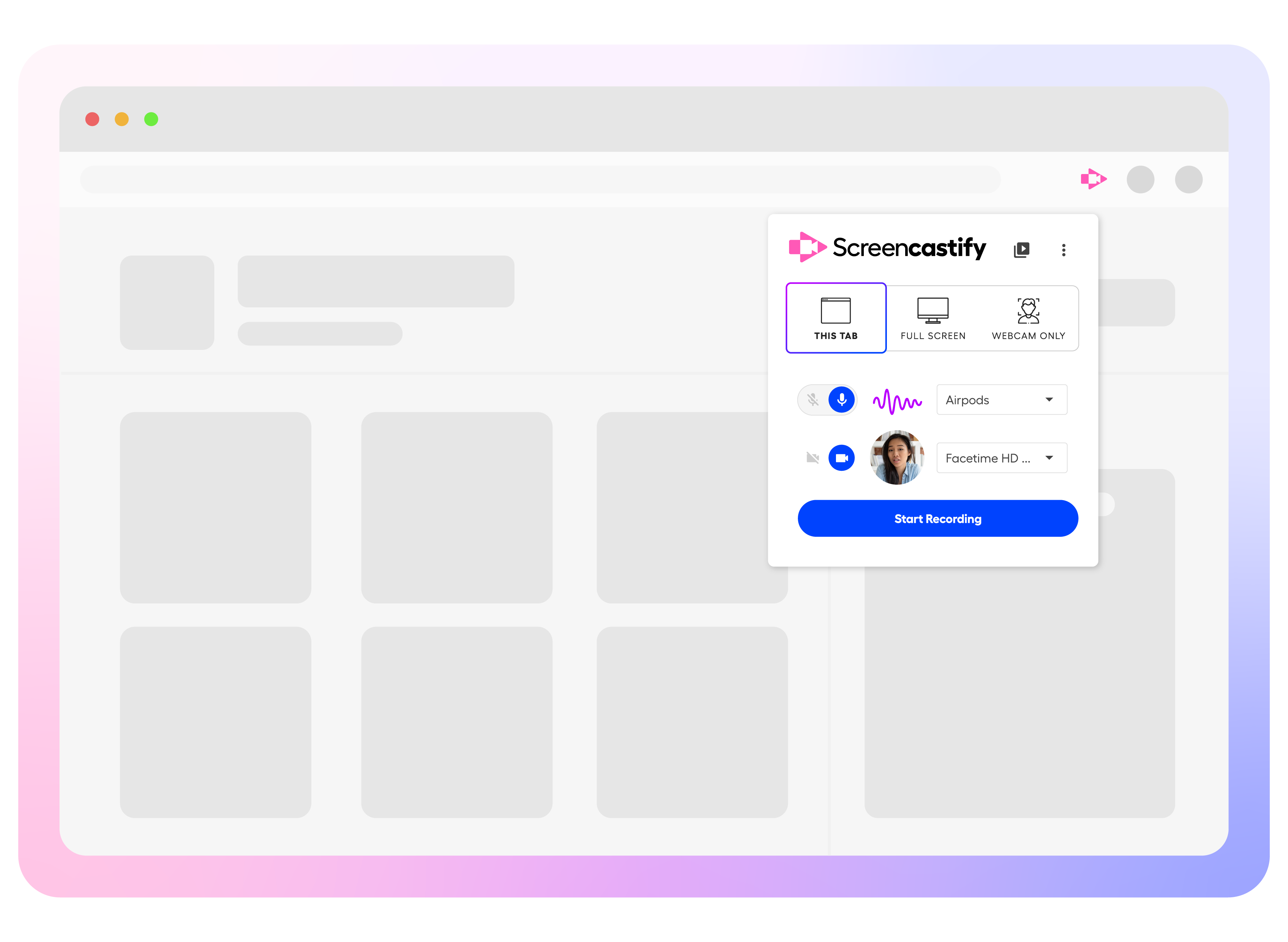
A Chrome extension that has lived in schools for years, which matters if you are working on a school-issued Chromebook where you cannot install desktop software. Recording takes one click from the toolbar and the video lands on a share page you can send. The free tier is generous on length but hard-capped on count: ten videos, then you are choosing what to delete or paying.
ScreenPal
Formerly Screencast-O-Matic, and still the most forgiving free recorder for someone who just wants a clean video with no fuss: no account needed, no watermark, and drawing tools you can use mid-recording to point at what you are explaining. Fifteen minutes is enough for most class assignments and it runs on Chromebooks as well as Windows and Mac. Longer recordings and the full editor sit behind a paid plan.
Microsoft Clipchamp
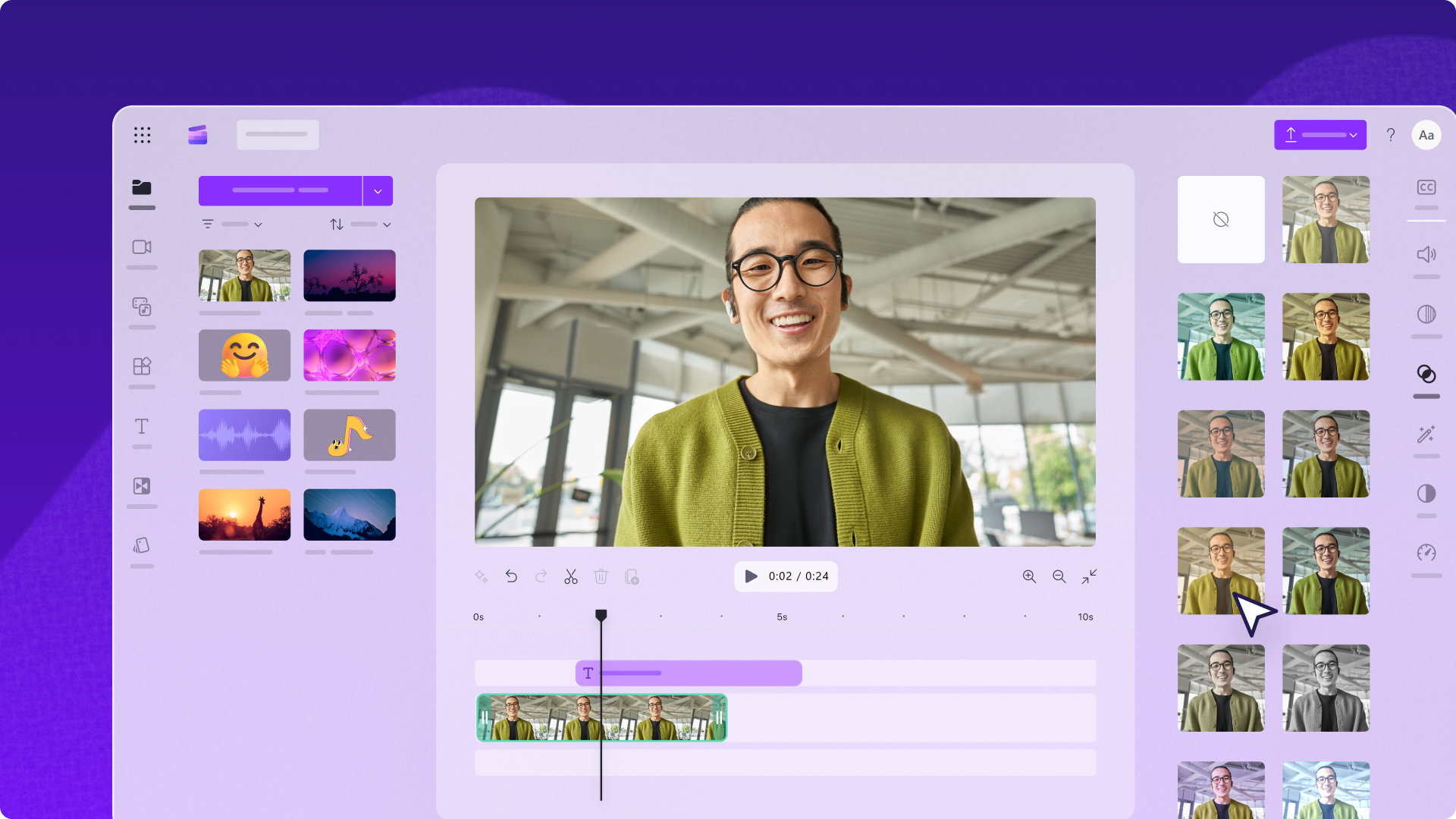
Microsoft's video editor with a screen recorder attached, and the most generous free tier in this table: unlimited videos, no watermark, and 1080p exports without paying anything. It runs in a browser tab and ships as an app on Windows 11, so a school laptop usually already has it. If you record and then need to cut, caption and tidy the result in the same place, this is the shortest path; the paid step up is a Microsoft 365 subscription rather than a standalone plan.
Camtasia
The heavyweight of the group, and the one lecturers and course designers tend to standardise on: a real timeline editor with cursor smoothing, zoom effects, quizzes and captions built for teaching videos. You can install the full editor and use every feature without paying, which makes it a genuine option for a one-off project, but every export carries a watermark until you buy a plan. TechSmith also runs a verified student discount in the US, Canada and the UK.
Descript
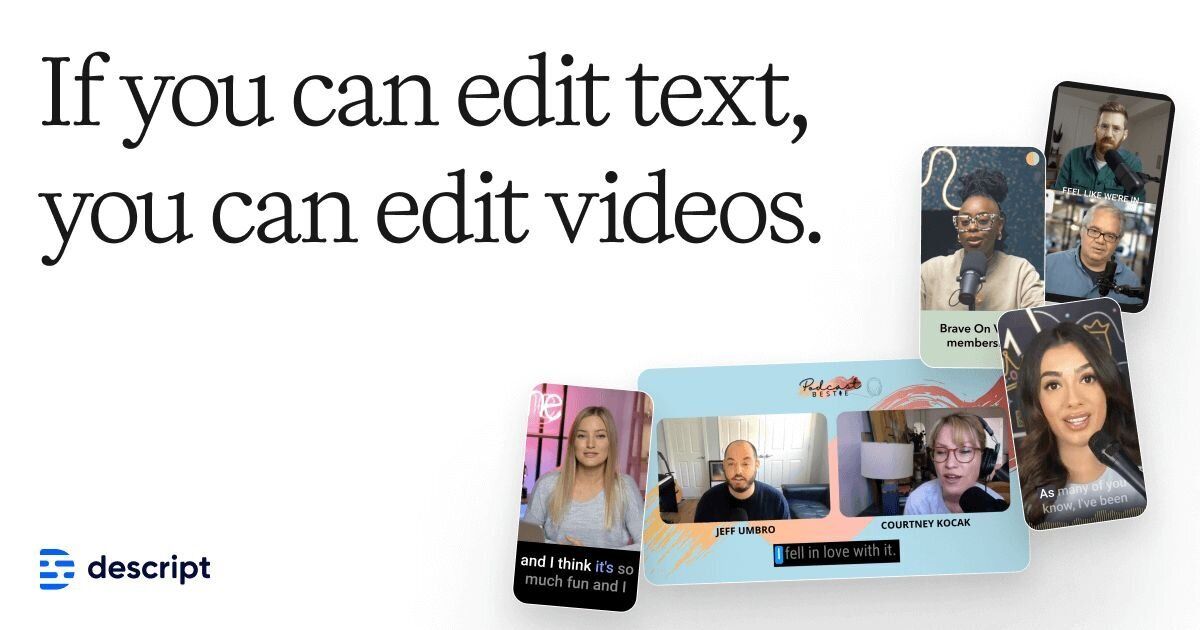
Descript transcribes what you recorded and then lets you edit the video by editing the transcript, so cutting a rambling sentence out of a narrated presentation is a matter of deleting the words. That is a genuinely different way to work and it suits anyone who talks their way through a screen recording. The free plan is metered in media hours rather than minutes per video, which runs out faster than it sounds, and free exports are capped at 720p.
Canva
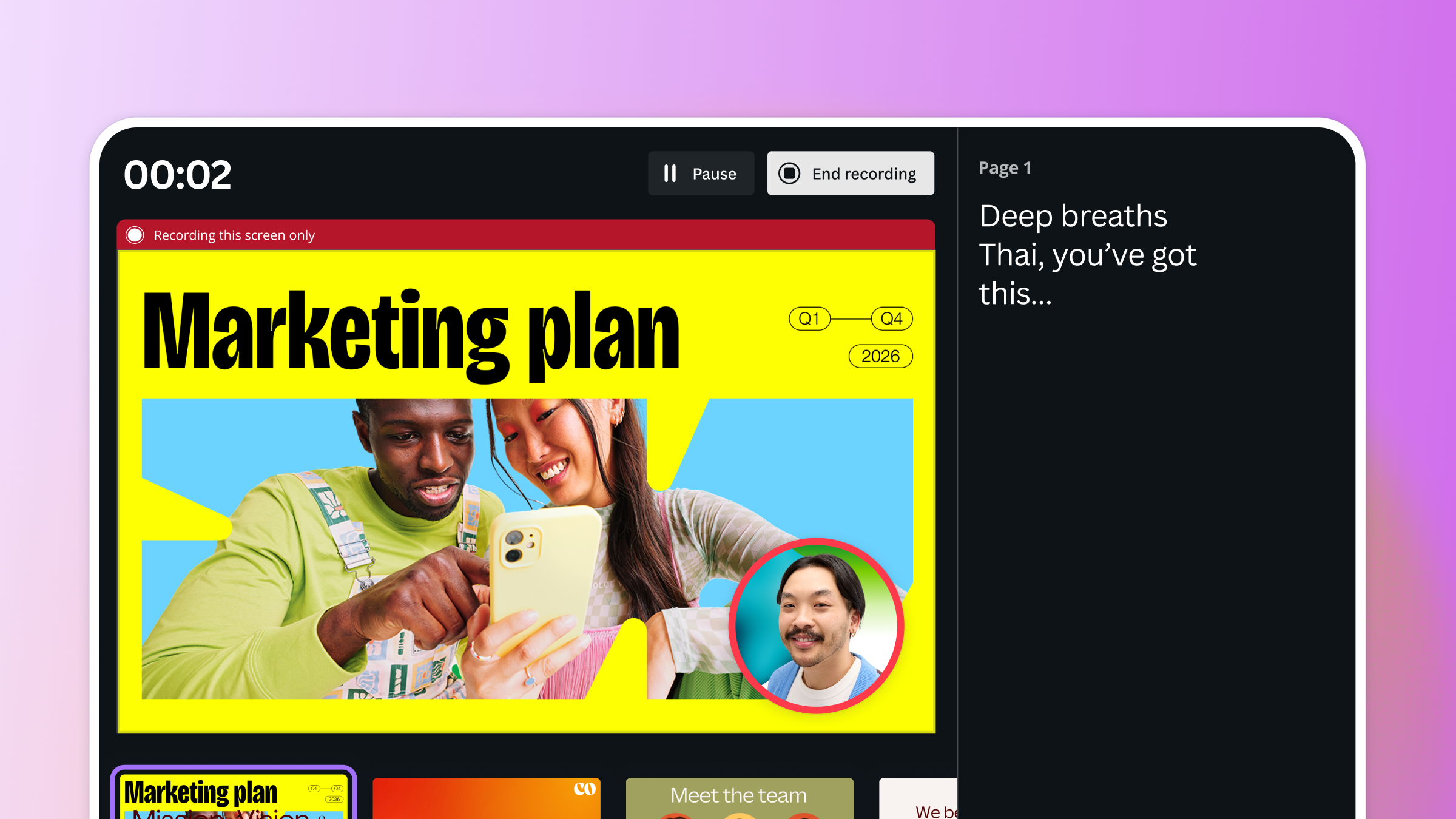
If your slides are already in Canva, its recorder saves a whole step: the recording lands in your uploads as a clip you can drop straight into the deck, caption and export. Twenty-five minutes is plenty for a graded presentation and there is no watermark. The catch is that the recorder lives only in the Canva desktop app, not the browser version most people use.
ShareX
A free, open-source Windows utility that does screenshots, scrolling captures, GIFs and screen recording from one tray icon, with automated actions for what happens after you capture. For a computing student who takes a lot of annotated screenshots for lab reports it is hard to beat, and nothing about it is paywalled. It is a capture tool rather than a video tool though: there is no editor and no share page waiting on the other side.
QuickTime Player
Already on every Mac, which makes it the fastest answer when a recording is due tonight: File, New Screen Recording, pick the whole screen or a region, stop, and the file is yours. You can reopen the recording in the app afterwards and save it to your Mac. What it will not do is anything clever: no captions, no share link, and editing stops at trimming and rearranging clips.
Xbox Game Bar
The recorder that is already in Windows: Windows key plus Alt plus R starts a capture and the MP4 lands in a Captures folder under Videos. It costs nothing, installs nothing, and is the quickest way to grab a software demo or a bug you need to show someone. It was built for game clips rather than tutorials, so it records the app you are in rather than your whole desktop, and there is no editing afterwards.
Screenity
An open-source Chrome extension with an unusually good free tier: recording, drawing on the screen, blurring anything sensitive and push-to-talk all cost nothing, and the video stays on your device unless you upload it. That combination suits a Chromebook or a locked-down lab machine where you cannot install software. The paid half is the hosted editor and share links, so if you only need a file to hand in, you never reach the paywall.
Bandicam
A long-running Windows recorder aimed at people capturing long sessions: lectures, gameplay, or a full software walkthrough, at high frame rates without the machine buckling. It now includes trimming and transcription in the app, so a lecture recording can be tidied without a second tool. The free version stops every recording at ten minutes, which makes it a trial in practice, and the cheapest personal licence is billed yearly and Windows-only.
How we researched this
We chose the columns for a student with an assignment due and a laptop they didn't pick, so cost and platform come before feature lists. The thirteen tools cover four routes: already on the computer (QuickTime Player, Xbox Game Bar), free and open source (OBS Studio, ShareX, Screenity), free plans with paid upgrades, and paid desktop software (Camtasia, Bandicam). VEED was dropped because its pricing page shows no free plan and never states the free tier's limits. Vidyard's site is now written for sales teams and describes its free plan only as a limited number of videos. Snagit is not listed separately because TechSmith now sells it inside the Camtasia Starter plan.
Where a cell is empty, the maker's own pages never state it: OBS Studio and ShareX say nothing about caps or editing, Apple never states a recording cap for QuickTime Player, Microsoft documents no editing for Xbox Game Bar, and neither page says outright that its recorder has no paid version. Free-tier caps and plan prices are what these companies change most, and Camtasia recently swapped its 30-day trial for watermarked free exports, so check the pricing page on the day you sign up.