Free Screen Recording Tools for Windows
OBS Studio is the free Windows screen recorder that holds nothing back: it is open source with no paid tier, and it is the strongest choice here for long recordings, high frame rates and streaming. The cost is setup time, and it has no timeline editor. If you want to record without installing anything, Windows already includes two recorders: Xbox Game Bar for games and Snipping Tool for the desktop.
Seven of the twelve are free plans of paid products, and that is where free starts to mean different things. Loom stops each recording at 5 minutes, Bandicam at 10 minutes with a watermark, and ScreenPal at 15 minutes without one, while iSpring Free Cam and FlashBack Express state no time limit at all.
Our picks
- Long recordings and live streaming: OBS Studio. Free and open source for Windows, Mac and Linux, with no paid tier holding back length, frame rate or streaming.
- A quick desktop clip with nothing to install: Windows Snipping Tool. Already in Windows, and Windows key, Shift and R starts a video snip anywhere on the desktop.
- Tutorials with your camera in the corner: ScreenPal. Records screen and camera together, includes a full editor, and adds no watermark on the free plan, with a 15-minute cap per recording.
- Long sessions without a watermark: FlashBack Express. No time limit and no watermark listed on the free tier, and you can trim and crop without a second program.
- A locked-down work laptop: Screenity. An open source Chrome extension, so nothing installs on the machine, and recordings stay on your own device.
At a glance
| Option | Cost Model | How You Get It | Runs On | Free Time Limit | Editing Built In | Best For |
|---|---|---|---|---|---|---|
| Free and open sourcesource | Free downloadsource | Windows, Mac and Linuxsource | Gaming and streamingsource | |||
| Free and open sourcesource | Free downloadsource | Windows onlysource | Quick clips and screenshotssource | |||
| Built into Windowssource | Already in Windowssource | Windows onlysource | Hands off to another appsource | Gaming and streamingsource | ||
| Built into Windowssource | Already in Windowssource | Windows onlysource | Hands off to another appsource | Quick clips and screenshotssource | ||
| Free plan, paid upgrade availablesource | Web app, no installsource | Windows and Macsource | Full editor includedsource | Tutorials and demossource | ||
| Free plan, paid upgrade availablesource | Free downloadsource | Windows and Macsource | 15 minutessource | Full editor includedsource | Tutorials and demossource | |
| Free plan, paid upgrade availablesource | Free downloadsource | Windows and Macsource | 5 minutessource | Trim and tidy upsource | Work videos and messagessource | |
| Free plan, paid upgrade availablesource | Free downloadsource | Windows onlysource | No time limitsource | Trim and tidy upsource | Tutorials and demossource | |
| Free plan, paid upgrade availablesource | Free downloadsource | Windows and Macsource | 10 minutessource | Gaming and streamingsource | ||
| Free and open sourcesource | Browser extensionsource | Any computer with Chromesource | Capture onlysource | Work videos and messagessource | ||
| Free plan, paid upgrade availablesource | Free downloadsource | Windows onlysource | No time limitsource | Trim and tidy upsource | Tutorials and demossource | |
| Free plan, paid upgrade availablesource | Web app, no installsource | Windows, Mac and Linuxsource | Full editor includedsource | Tutorials and demossource |




Time limits and watermarks on free plans
Among the paid products with free plans, the limits run from tight to none. Loom's free Starter plan caps each recording at five minutes and your library at 25 videos, which fits a quick walkthrough and little else. Bandicam stops at ten minutes and stamps its watermark on the file, so it works as a trial more than a free tool. ScreenPal gives you 15 minutes with no watermark.
iSpring Free Cam and FlashBack Express both state no time limit and no watermark. Free Cam has two catches: it saves 720p WMV rather than MP4, and camera recording is reserved for the paid version. Clipchamp says free exports carry no watermark, but it does cap screen recordings at a length we could not find published, and VEED's free limits could not be read off its pricing page.
Recording on a work PC where you cannot install software
Five of these need no download. Xbox Game Bar and Snipping Tool are already in Windows, and they split the job: Game Bar opens with Windows key and G for games but will not reliably capture File Explorer or the desktop, which is exactly the gap Snipping Tool fills. Microsoft Clipchamp and VEED run in a browser tab, and Clipchamp also ships with Windows 11, though it wants a Microsoft account. Screenity lives in Chrome as an extension.
Everything else is a free download. ShareX, iSpring Free Cam and FlashBack Express are Windows only, so they will not follow you to a Mac.
Editing a recording without a second program
Only three put a real editor next to the recorder: Clipchamp, ScreenPal and VEED. At Clipchamp you record, cut, caption and export in the same place, with fancier features behind Microsoft 365. Loom, Free Cam and FlashBack Express allow trimming and tidying up. Game Bar and Snipping Tool hand the file to another app, Snipping Tool to Clipchamp. Screenity's free extension records and downloads, with its editor on the paid Pro plan, and OBS Studio, ShareX and Bandicam send you to a second program for cuts.
The options in detail
OBS Studio
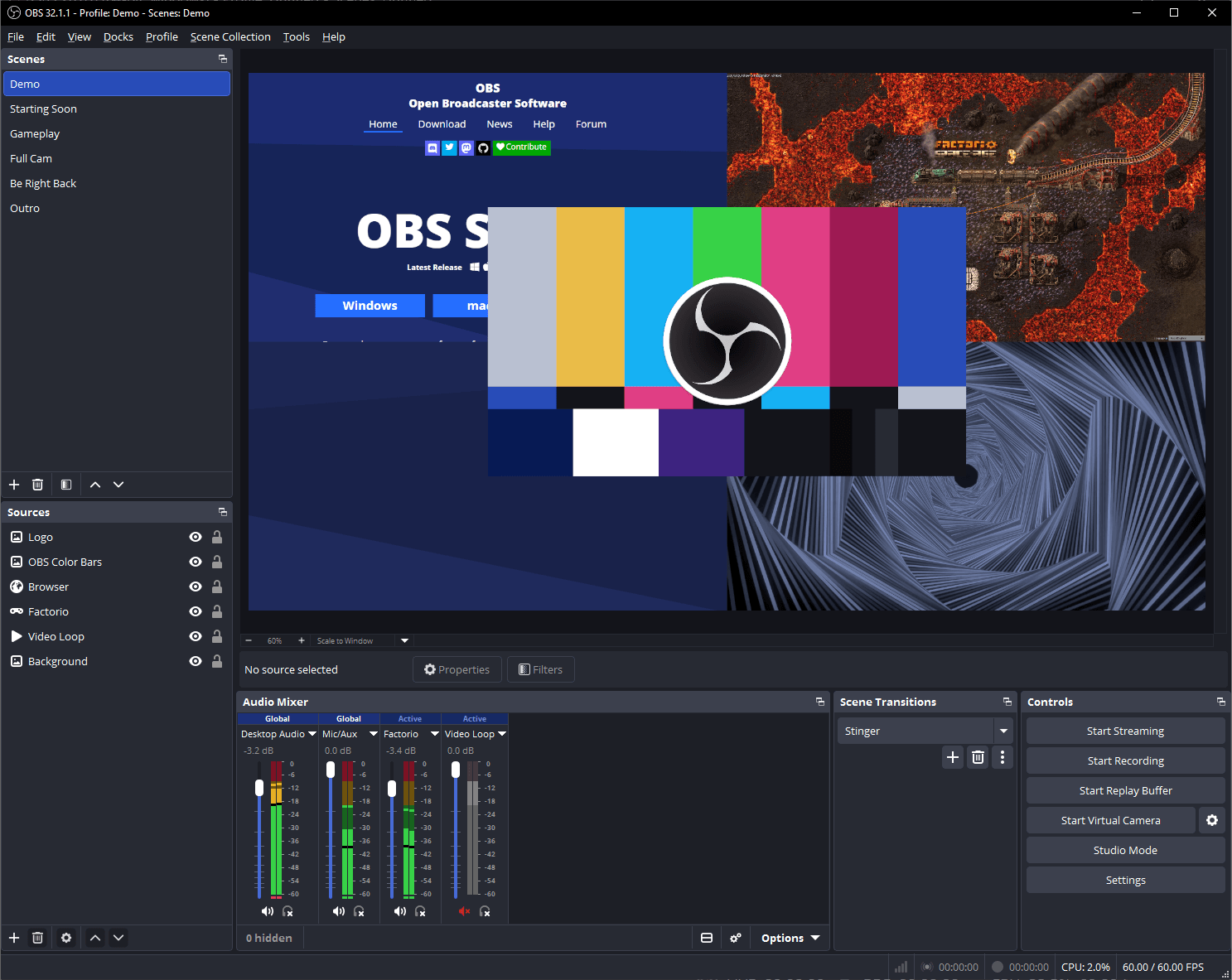
OBS Studio is the recorder people move to when a simple capture tool stops being enough. You build a scene out of layers, your screen, a game window, a camera, images and text, then record or stream it, and nothing is held back behind a paid tier because the project is community run and funded by sponsors and donations. The trade is setup time: the first launch is a blank canvas with no recording button until you add a source, and there is no timeline editor, so finished clips go to another program for trimming. It is the strongest free option here for long recordings, high frame rates and anything you also want to stream.
ShareX
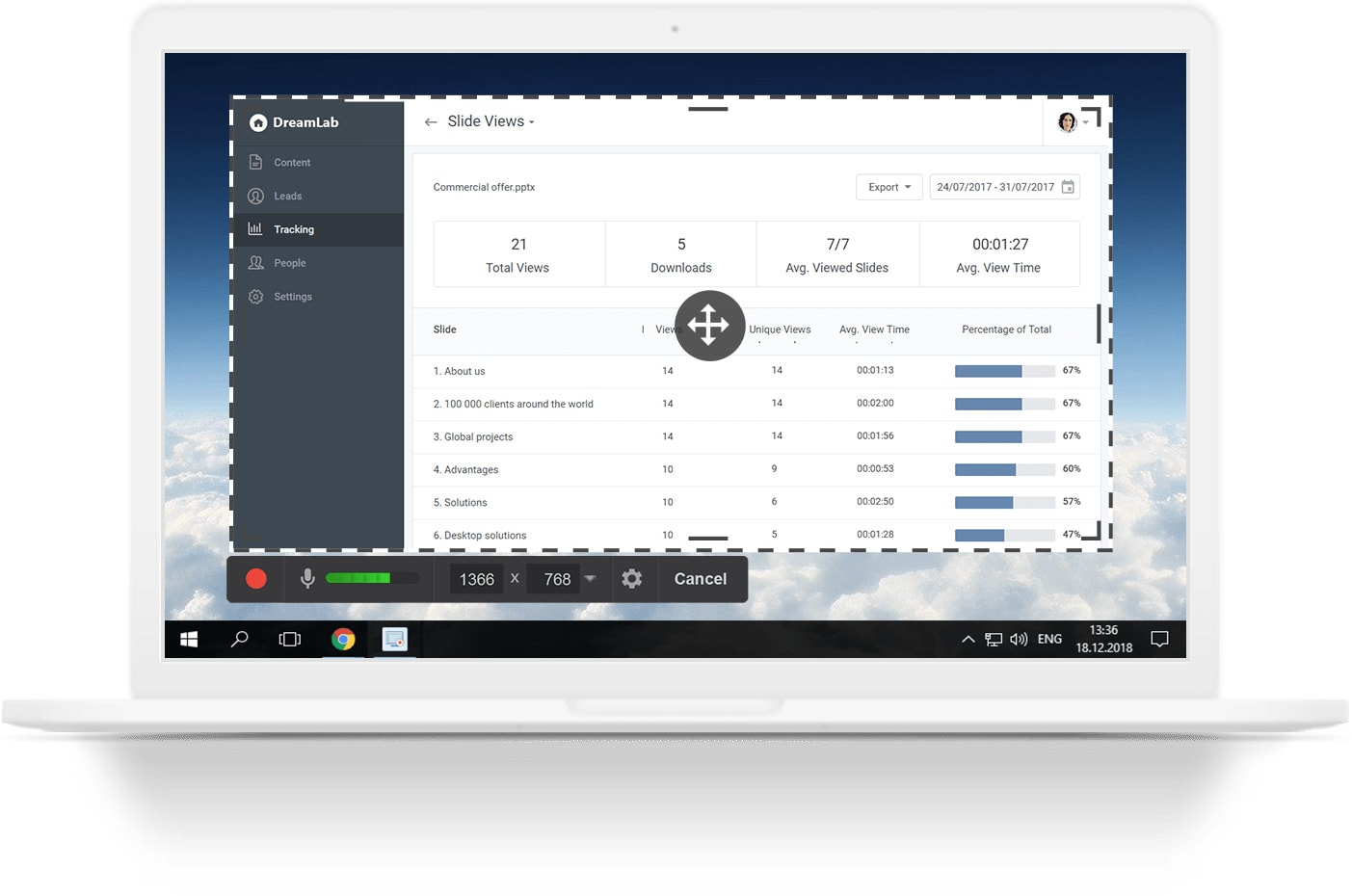
ShareX is a capture tool first and a screen recorder second, and that is exactly why people keep it: hit a hotkey, drag a region, and you have a clip or a GIF on disk in seconds with no account, no sign up screen and no nag. It is open source and Windows only, and it carries a pile of extras around the capture itself, an image editor for annotating screenshots, OCR, and automatic uploading. The recorder has no video editing to speak of, so it suits short demos and bug reproductions more than a polished tutorial.
Xbox Game Bar
Game Bar is the recorder you already have. Press the Windows key and G in a game and an overlay appears with a capture widget, so a clip takes two keystrokes and no install. It is built for games rather than for the desktop, which is its main limitation: it will not reliably capture File Explorer or the desktop itself, and editing means opening the clip somewhere else. For saving a moment from a game with nothing installed, it is hard to beat.
Windows Snipping Tool
Most people know Snipping Tool as the screenshot key, but recent Windows versions added a Record button beside it, so the same drag-a-rectangle gesture captures video. Windows key, Shift and R starts a video snip anywhere on the desktop, which is the gap Game Bar leaves. It does almost nothing after the recording stops: you save the file as it is, or send it to Clipchamp to edit. That makes it the fastest way to grab a short desktop clip when you cannot install anything.
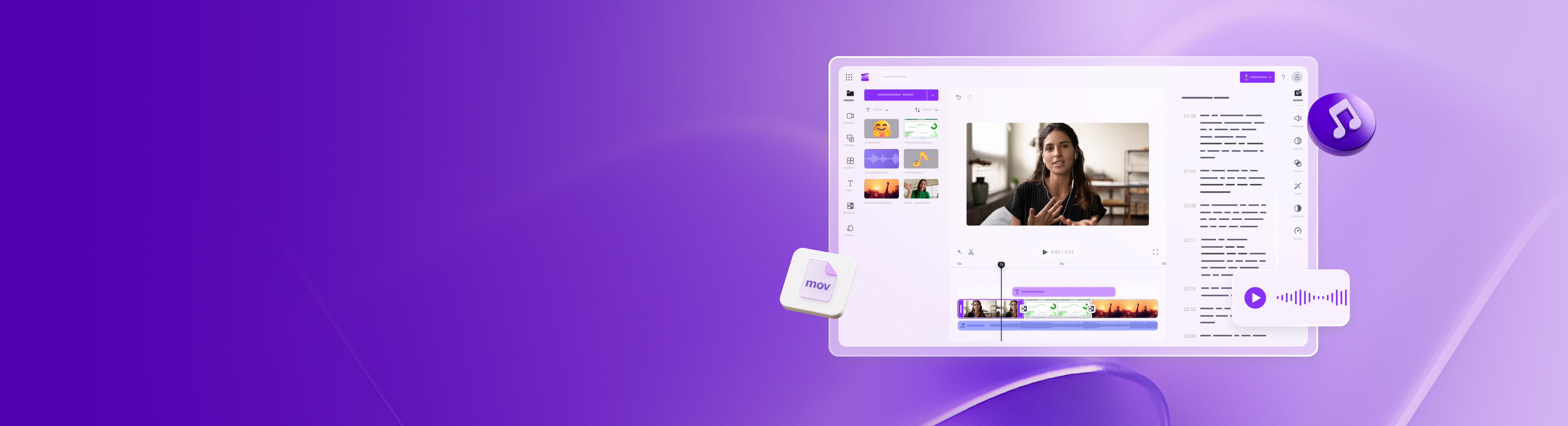
Microsoft Clipchamp
Clipchamp is Microsoft's video editor with a screen and camera recorder attached, and it ships with Windows 11 as well as running in a browser tab. It is the only tool here where recording and real editing happen in the same place: record the screen, drop the clip on a timeline, cut it, add captions and titles, then export. Microsoft states that free exports carry no watermark, which is unusual for a browser editor. The catch is that it wants a Microsoft account, and the fancier editing features sit behind a Microsoft 365 subscription.
ScreenPal
ScreenPal, which people still call Screencast-O-Matic, is the tidiest middle ground on this list: a small desktop recorder that captures screen and camera together, plus a video editor for what comes out. The free plan is genuinely usable because it adds no watermark and asks for no account to record, which is rare in this tier. The limit is length: fifteen minutes per recording, so a long training session means paying or splitting it up. Good pick for tutorials, lessons and product walkthroughs.
Loom
Loom is built for sending someone a video instead of writing a long message: you record your screen with your face in a bubble, and the moment you stop, a shareable link is ready with a transcript and a comment thread. That workflow is the reason to pick it, and the reason it is a poor fit for anything long. The free Starter plan caps each recording at five minutes and your library at twenty five videos, which suits a quick walkthrough or bug report and nothing bigger.
iSpring Free Cam
Free Cam is the plainest tool here and makes a point of it: no watermark, no time limit, no account, and a short list of features aimed at recording a lesson with a voiceover. You pick an area, record the screen with microphone and system sound, cut out the bad parts, and save or push straight to YouTube. Two things to know before you commit: the free version saves 720p WMV rather than MP4, and camera recording is reserved for the paid Cam Pro version, so there is no picture-in-picture of you talking.
Bandicam
Bandicam is a long-standing Windows capture app that people reach for when they want high frame rate game or gameplay recording without configuring OBS. It handles screen, game and camera capture with drawing on top while you record, and it is easy to set up. The free version is a real limitation rather than a nag, though: every recording stops at ten minutes and the finished file carries a Bandicam watermark, both of which only go away with a paid licence. Try it free, but plan on paying if you keep it.
Screenity
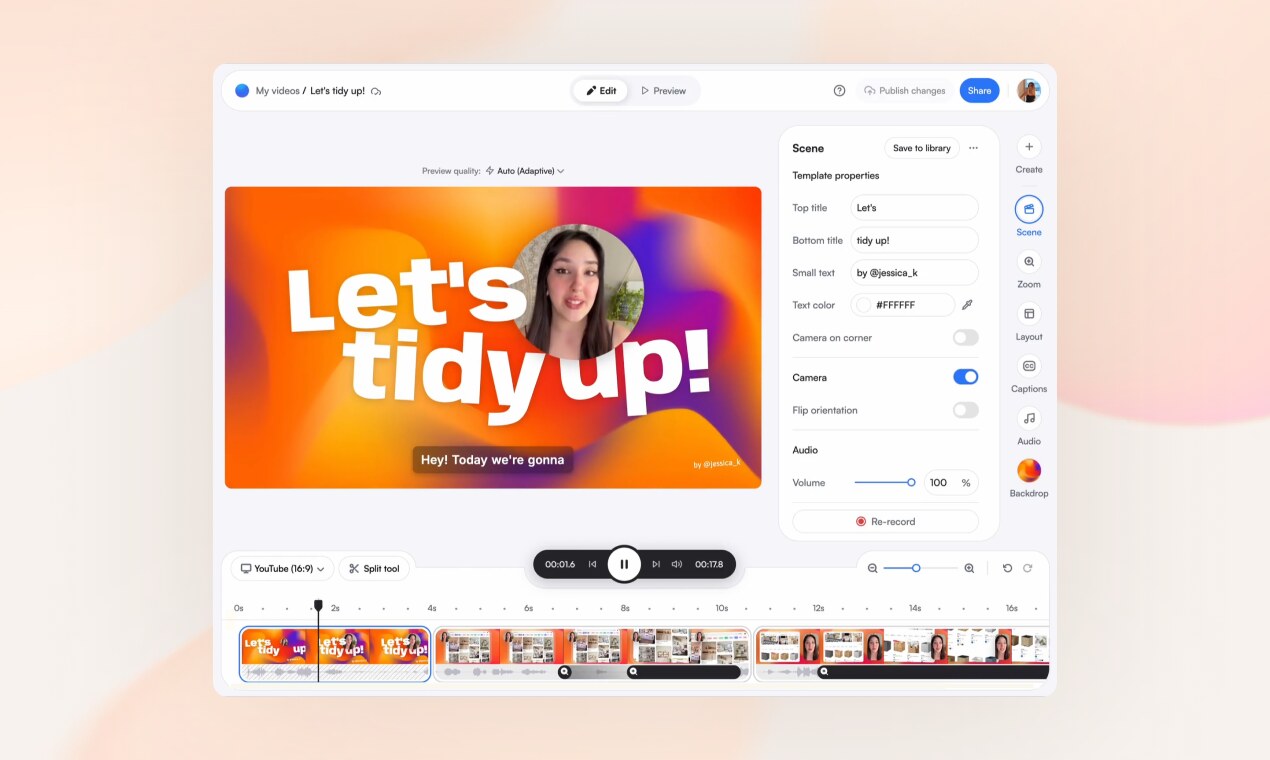
Screenity is an open source Chrome extension, so there is nothing to install on the machine itself, which makes it one of the few workable options on a locked-down work laptop. It records the screen and camera, lets you draw and blur while recording, and keeps the file on your own device rather than uploading it. What it does not include for free is the editor: scenes, zoom, captions and share links belong to the paid Pro plan, so the free extension is a recorder and a download button.
FlashBack Express
FlashBack Express is the free edition of a paid Windows recorder, and it is unusually generous about it: the maker lists no time limit and no watermark on the free tier, with screen, camera and audio capture and multi-monitor support included. Basic editing is there too, so you can trim and crop a recording without a second program. What the paid versions add is the serious editing work, multi-track timelines, zoom and spotlight effects and text overlays. Worth a look if the free tools with time limits have been getting in your way.
VEED Screen Recorder
VEED records your screen and camera from a browser tab, then drops the result straight into its online editor for subtitles, background noise removal and trimming. Nothing gets installed, which is the appeal on a managed machine or a Chromebook. It is the most editor-heavy option here and the most sales-led: the free tier exists to get you into the paid product, so check the current free limits and watermark policy on the pricing page before you rely on it for anything you plan to publish.
How we researched this
Free here means you can record without paying, and the Cost Model column shows which kind of free: an open source project (OBS Studio, ShareX, Screenity), a feature built into Windows (Game Bar, Snipping Tool), or the free plan of a paid product (the other seven). Camtasia, Snagit and Movavi were left out as paid products with trials. The NVIDIA App was left out because it needs an NVIDIA graphics card, and Icecream Screen Recorder because its own pages never state the free version's limits. Best For is how each maker describes its tool, not our ranking, and with every recorder here free to start, a price column would have read $0 down all twelve rows.
A blank Free Time Limit means the maker publishes no figure, not that the tool is unlimited. That matters most for Game Bar and Clipchamp, which do have caps that the Microsoft pages we reached did not state. Watermarks are covered in the write-ups rather than a column because only five makers state a policy either way. Before relying on a free plan for a published video, check VEED's current limits and watermark policy on its pricing page, and expect that ScreenPal may ask for an account when you share.