Free Screen Recording Software
18 free screen recorders compared on platform, time limit and editing, from OBS Studio and Cap to Loom, ScreenRec and the tools built into Windows and Mac. Read our take
At a glance
| Option | Cost Model | Runs On | How You Get It | Free Recording Limit | Editing Built In | Best For |
|---|---|---|---|---|---|---|
| Free and open sourcesource | Windows, Mac, Linuxsource | Free downloadsource | No time limitsource | Capture onlysource | Gaming and streamingsource | |
| Free and open sourcesource | Windowssource | Free downloadsource | No time limitsource | Trim and basic editssource | Quick clips and GIFssource | |
| Free version of a paid productsource | Windows, Mac, Linuxsource | Free downloadsource | No time limitsource | Full video editorsource | Work video messagessource | |
| Free and open sourcesource | Chromesource | Browser extensionsource | No time limitsource | Trim and basic editssource | Recording in the browsersource | |
| Free and open sourcesource | Macsource | Free downloadsource | Trim and basic editssource | Quick clips and GIFssource | ||
| Free and open sourcesource | Linuxsource | Free downloadsource | Gaming and streamingsource | |||
| Free version of a paid productsource | Windows, Macsource | Free downloadsource | No time limitsource | Full video editorsource | Tutorials and trainingsource | |
| Built into the operating systemsource | Windowssource | Already installedsource | Gaming and streamingsource | |||
| Built into the operating systemsource | Windowssource | Already installedsource | Trim and basic editssource | Quick clips and GIFssource | ||
| Built into the operating systemsource | Macsource | Already installedsource | Trim and basic editssource | Quick clips and GIFssource | ||
| Free version of a paid productsource | Windows, Mac, Chromesource | Free downloadsource | 5 minutessource | Work video messagessource | ||
| Free version of a paid productsource | Windows, Mac, Chromesource | Free downloadsource | 15 minutessource | Trim and basic editssource | Tutorials and trainingsource | |
| Free version of a paid productsource | Windows, Macsource | Web appsource | 30 minutessource | Full video editorsource | Tutorials and trainingsource | |
| Free version of a paid productsource | Windows, Macsource | Free downloadsource | 5 minutessource | Trim and basic editssource | Tutorials and trainingsource | |
| Free version of a paid productsource | Windowssource | Free downloadsource | No time limitsource | Trim and basic editssource | Tutorials and trainingsource | |
| Free version of a paid productsource | Windowssource | Free downloadsource | No time limitsource | Trim and basic editssource | Tutorials and trainingsource | |
| Free version of a paid productsource | Windows, Mac, Linuxsource | Free downloadsource | No time limitsource | Work video messagessource | ||
| Built into the operating systemsource | Chromesource | Already installedsource | Capture onlysource | Quick clips and GIFssource |




Our take
For most people the answer is OBS Studio: it is free and open source, runs on Windows, Mac and Linux, and puts no time limit on a recording. If you would rather install nothing, the Windows Snipping Tool (Windows key + Shift + R), the Mac Screenshot app (Shift-Command-5) and Chromebook Screen Capture (Shift + Ctrl + Show windows) already record the screen on the computer you have.
The real split in this table is what the free version holds back. OBS Studio, ShareX, Screenity, Cap, ActivePresenter, iSpring Free Cam and FlashBack Express all record with no time limit, and so does ScreenRec once you make a free account, while Loom and Bandicam stop each free recording at 5 minutes, ScreenPal at 15 and Microsoft Clipchamp at 30. The capped tools trade length for convenience: Loom hands you a share link the moment you stop, and Clipchamp drops the recording straight onto an editing timeline.
Our picks
- Best overall free recorder: OBS Studio. Free and open source on Windows, Mac and Linux, with no time limit on a recording.
- Nothing to install on Windows: Windows Snipping Tool. Already in Windows, and Windows key + Shift + R starts a video clip of any part of the screen.
- Best for recording and editing in one app: ActivePresenter. A full video editor and no time limit in the free edition, on Windows and Mac, for non-commercial use.
- Best for Chrome and Chromebooks: Screenity. A free, open source Chrome extension with no recording time limit and no account needed.
- Best free Loom alternative: Cap. Shares a link the moment you stop, with a full editor and no time limit on local recordings for personal use.
Free recording limits: 5, 15 or 30 minutes
Four tools here cap the length of a free recording. Loom's free Starter plan stops at 5 minutes and keeps 25 videos per person at up to 720p. Bandicam's free version also stops at 5 minutes, and its own page warns that a video exported after trimming carries a watermark. ScreenPal allows 15 minutes and hosts 10 videos, and Microsoft Clipchamp allows 30 minutes a recording but lets you make as many recordings as you like.
If your recordings run long, such as a full lesson or a meeting walkthrough, start with a tool marked No time limit: OBS Studio, ShareX, Cap, Screenity, ActivePresenter, iSpring Free Cam, FlashBack Express or ScreenRec. ScreenRec needs its free account for that, because a recording made while signed out stops at 5 minutes.
Free for personal use or free for work too
Three of the free versions here come with a use restriction rather than a time limit. Cap is free for personal use, and recording for work needs its desktop licence at $29 a year or $58 once. ActivePresenter's Free edition is meant for trial and non-commercial use only. ScreenRec's Free Forever plan is for personal use only too, and business use starts on its Pro plan. The open source recorders, OBS Studio, ShareX, Screenity, Kap and SimpleScreenRecorder, carry no such restriction in their free download.
The recorders already on your computer
Windows has two. Xbox Game Bar (Windows key + G) is built for recording games and single apps, and reviewers note it will not record the desktop or File Explorer. The Snipping Tool records any part of the screen, lets you drag handles to trim the start or end, and sends you to Clipchamp for captions or audio edits. On a Mac, Shift-Command-5 opens the Screenshot toolbar, the same tools QuickTime Player uses, and QuickTime can trim the result; Apple notes that recording system audio needs macOS 27 or later.
Chromebook Screen Capture records the full screen, one window or part of the screen, with the camera, microphone and device audio, and can save a partial recording as a GIF, but it has no editor, so trims happen in another app. Linux has no built-in recorder in this table. OBS Studio, Cap, SimpleScreenRecorder and ScreenRec are the four options that run there.
The options in detail
OBS Studio
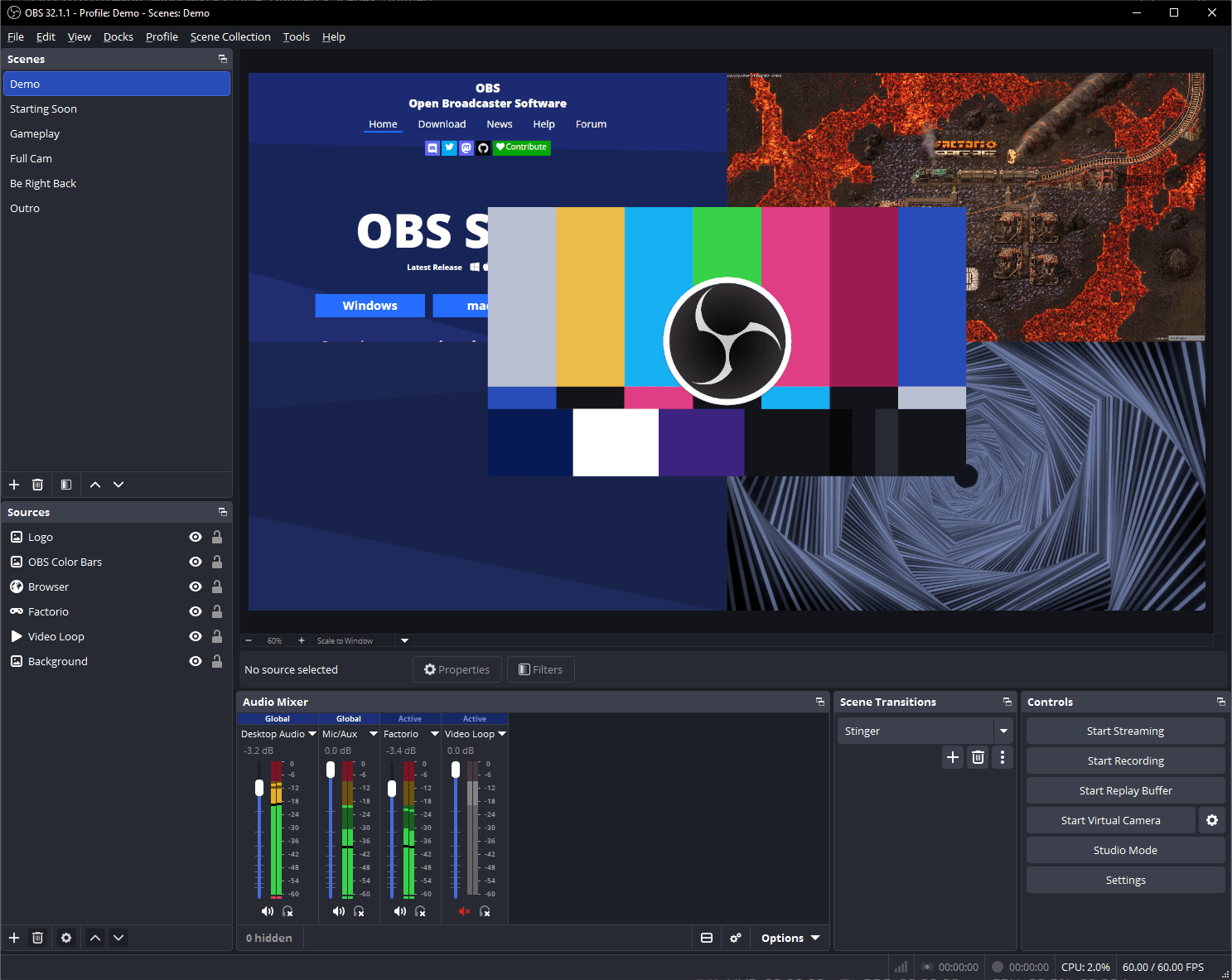
OBS Studio is the free recorder most people graduate to when a one-button tool stops being enough. You build a scene from layers, such as your screen, one app window, a webcam and text, and then record it or stream it live, with nothing held back behind a paid tier because the project is funded by sponsors and donations. The trade is setup: the first launch is a blank canvas of scenes, sources and audio mixers, and there is no editor inside, so trims happen in another program.
ShareX
ShareX is a Windows screenshot tool that also records video and animated GIFs, and it has been developed in the open for more than 18 years. Its strength is speed for short captures: select a region, record, and send the file to a folder, the clipboard or one of dozens of upload destinations automatically. The settings are dense, there is no Mac version, and reviewers note the GIF recorder does not capture sound, so longer narrated videos are better made elsewhere.
Cap
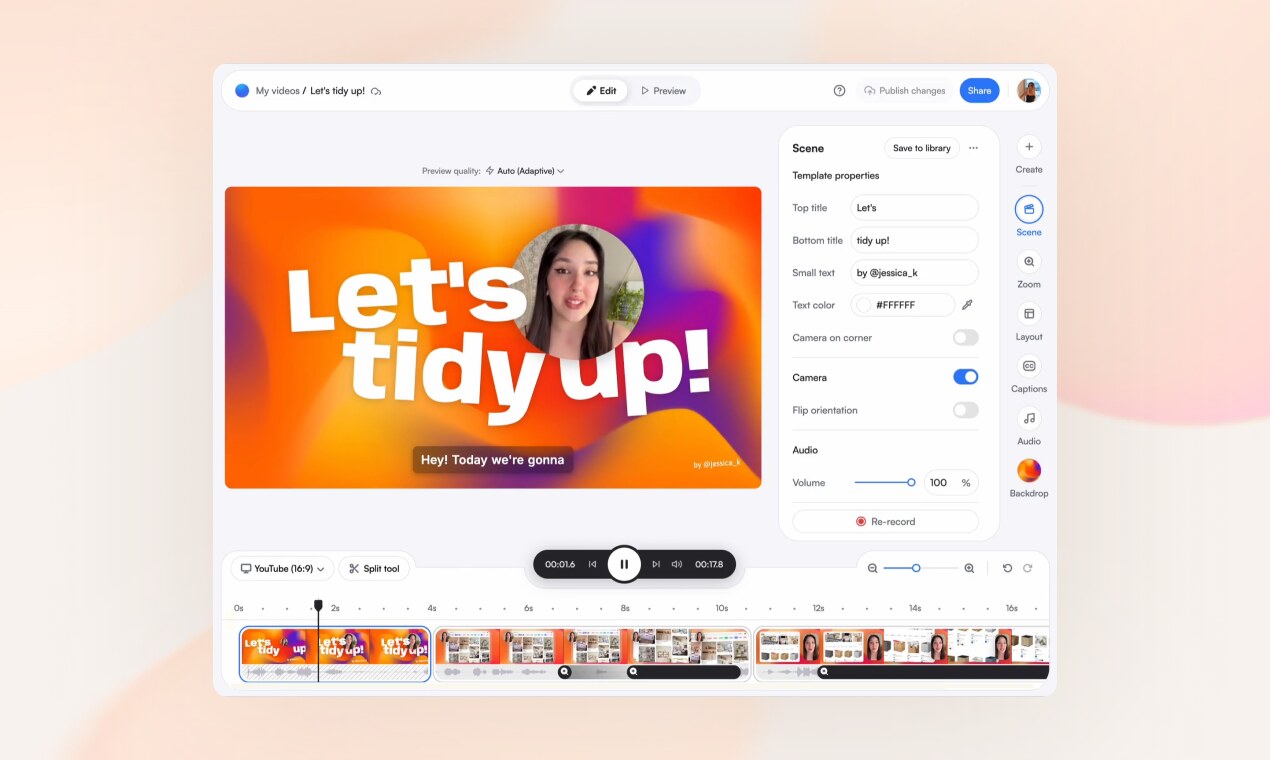
Cap is an open source recorder that pitches itself as an alternative to Loom, with two ways to work: Instant Mode uploads as you record and puts a share link on your clipboard when you stop, while Studio Mode records locally in high quality and opens an editor for backgrounds and polish. The free version is for personal use; commercial use needs a paid desktop licence, and free cloud links are limited in number and length. Your recordings can go to Cap's cloud, your own storage, or a server you host yourself.
Screenity
Screenity is a Chrome extension that records a tab, a window, your whole screen or just your camera, and lets you draw on the screen, blur fields and highlight clicks while you record. The recorder is open source and free, and recordings stay on your device without an account. Its maker sells a separate hosted editor with captions, auto-zoom and share links, and since it lives in Chrome it suits people who work in the browser more than anyone recording desktop apps.
Kap
Kap is a small open source Mac recorder built for short captures you want to drop into a chat, a bug report or documentation. It exports straight to GIF, MP4, WebM or APNG, can highlight your clicks, trims the clip before saving, and has plugins that upload to services such as Giphy. It needs macOS 12 or later and is not meant for long narrated videos or webcam overlays.
SimpleScreenRecorder
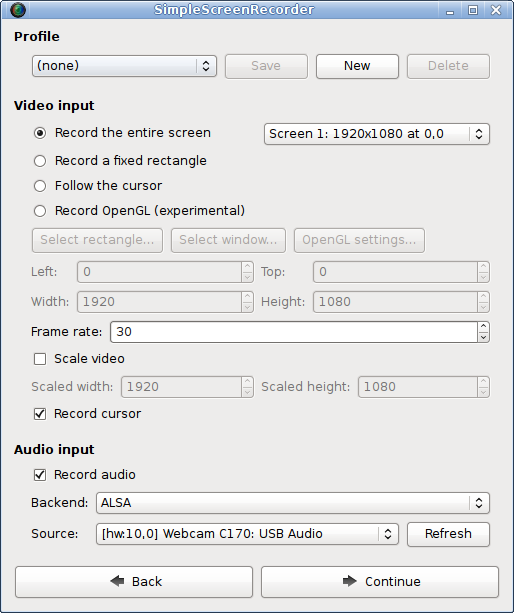
SimpleScreenRecorder is a Linux program written by one developer to record programs and games, with a plain step-by-step interface that is easier than driving ffmpeg or VLC by hand. It records the whole screen or part of it, can capture OpenGL games directly, keeps audio in sync, and lets you pause and resume with a hotkey. Install it from your distribution's own repositories; its author warns that a look-alike website is fake and may carry malware.
ActivePresenter
ActivePresenter from Atomi Systems is a course-building tool that happens to include one of the most complete free recorders: it captures screen, webcam and audio on separate tracks and edits them in a multi-track timeline. The Free edition is limited to trial and non-commercial use, and outputs that use the paid-only features carry a watermark until a licence is bought. It feels heavy for a quick 90-second clip but suits anyone making training videos.
Xbox Game Bar
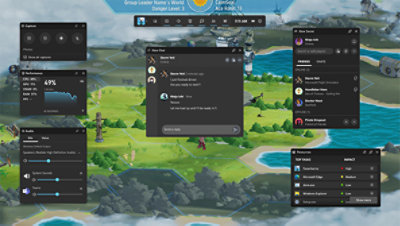
Xbox Game Bar is already on every Windows PC: press Windows key + G during a game and you can record a clip, take a screenshot or chat with Xbox friends without leaving it. It is built for games and single apps rather than the desktop, and reviewers note it will not record the desktop or File Explorer. For anything other than gameplay on Windows, the Snipping Tool or a downloaded recorder is the better fit.
Windows Snipping Tool
The Snipping Tool in Windows 11 now records video as well as screenshots: press Windows key + Shift + R, drag a box around part of the screen, and record. It is the quickest way to get a short clip on Windows with nothing to install, and recent versions capture both microphone and system audio. Before saving, you can drag handles to trim the start or end of the clip; for captions or audio edits, Microsoft sends you to Clipchamp.
Mac Screenshot App and QuickTime Player
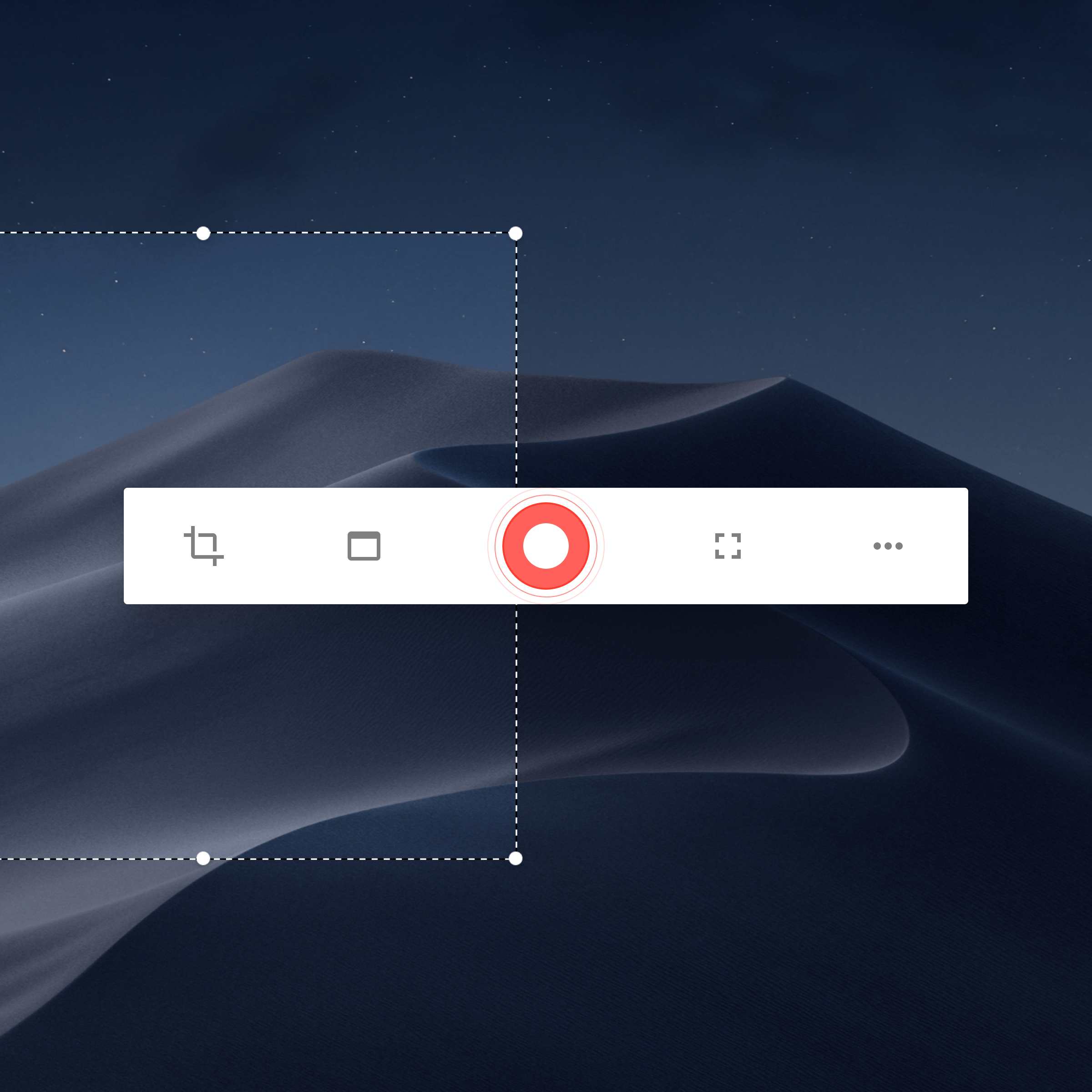
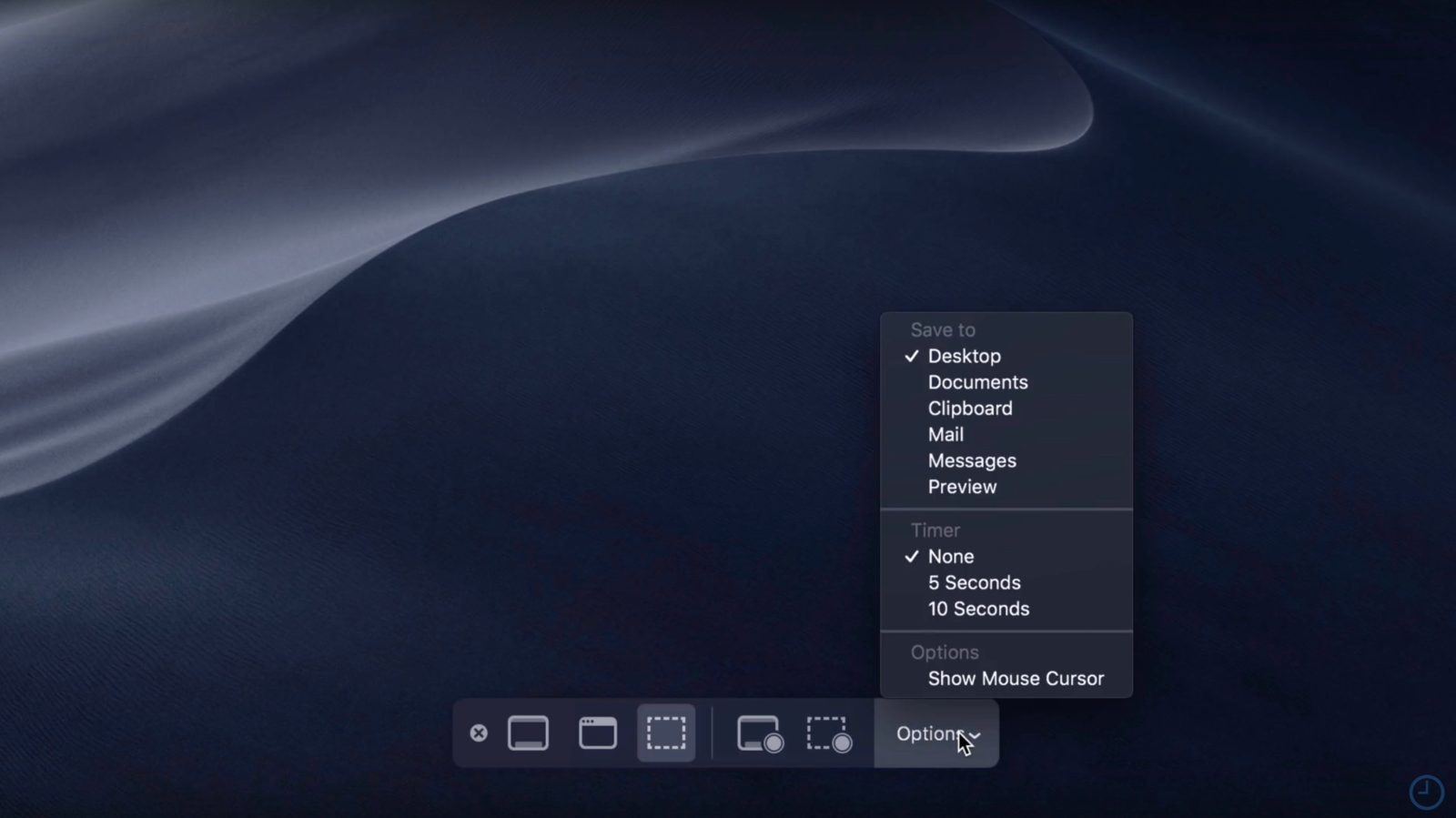
Every Mac can record its screen with nothing to download: press Shift-Command-5 to open the Screenshot toolbar and record the whole screen, a selected window or a portion of it, or start the same tools from QuickTime Player. Recordings save to your desktop by default and can be trimmed in QuickTime. Apple says recording system audio needs a recent version of macOS, and there is no webcam overlay, so anything more ambitious needs another tool.
Loom
Loom is built around the video message: record your screen and face, stop, and a link with comments and emoji reactions is ready to send. The free Starter plan is closer to a trial than a long-term free recorder, with each recording capped at 5 minutes, 25 videos per person and 720p quality. Trimming, downloads and removing Loom branding are listed as paid Business features, and everything is stored in Loom's cloud rather than as a file you keep.
ScreenPal
ScreenPal, formerly Screencast-O-Matic, is a gentle first recorder for teachers and anyone making short tutorials: you record your screen, webcam or both, with drawing tools while you record and a basic editor afterwards. The free plan caps each recording at 15 minutes and hosts 10 videos, but adds no watermark and can save files locally. It runs on Windows, Mac, Chromebook and phones, though there is no Linux app.
Microsoft Clipchamp
Clipchamp is Microsoft's video editor, and its screen and camera recorder runs in the browser and in the Windows app, so a recording drops straight onto an editing timeline with text, transitions and music. Each recording can run up to 30 minutes, though you can make as many as you like, and free exports go up to 1080p with no watermark. You need a free account to start, and premium stock and some features come with Microsoft 365.
Bandicam
Bandicam is a long-running Windows recorder, now also on Mac, that sells a full version and offers a free one to try. The free version records without a watermark, with webcam overlay, real-time drawing and scheduled recording, but each recording stops at 5 minutes. Its own page notes that videos exported after trimming in the free version do carry a watermark, so it works best as a trial before buying.
iSpring Free Cam
iSpring Free Cam is a free Windows recorder from an e-learning company, aimed at video lessons and presentations: record the screen, a region or a window, add a voice-over, then trim and clean up audio before exporting or uploading to YouTube. It promises no watermark and no time limits. It records narration rather than a webcam, and the paid iSpring Cam Pro is where the extra features live.
FlashBack Express
FlashBack Express is the free edition of the FlashBack recorder for Windows 10 and 11, and it records screen, webcam, microphone and PC sound together with no watermark and no time limit. The free version includes drawing while you record, multi-monitor capture, scheduled recordings and webcam background blur, and its own FAQ says it can trim, cut and crop a recording and add text, shapes, transitions and music. A customer quoted on the same page pays for the Pro licence only when client videos need the fuller editing tools, so the most polished effects may sit behind that upgrade.
ScreenRec
ScreenRec is a free desktop recorder that uploads while you record and copies a private share link to your clipboard when you stop, much like Loom. Recording length is unlimited once you sign up for a free account; without one, each recording stops at 5 minutes. The free plan is for personal use only, records at up to 720p, allows 50 recordings a month and keeps them in 2 GB of cloud storage, which Toolradar estimates fills after a few hours of footage. Its plan pages list no video editor, though screenshots can be annotated.
Chromebook Screen Capture
Every Chromebook has a screen recorder in its Screen capture menu: press Shift + Ctrl + Show windows, choose Screen record, and record the full screen, part of it or a single window. It can add the front camera, the microphone and device audio, show your clicks and keys, and save a partial-screen recording as a GIF. Recordings are saved to the Downloads folder as .webm files, and Google's help page offers only review, delete and share afterwards, so trimming means opening another app.
How we researched this
We read each recorder's own website, pricing page or help article for how it is free, what it runs on, the longest free recording, the editing it includes and what it is built for, and recorded every value with the sentence it came from. Where a maker's page did not state a limit or an editing detail, we used published roundups and guides from Dupple, Toolradar and How-To Geek, and where no source stated it the cell is blank rather than guessed. That is why the built-in Windows, Mac and Chromebook tools, Kap and SimpleScreenRecorder have no recording limit listed, and why ScreenRec, whose pages describe no video editor, has no editing value.
Paid-only recorders such as Camtasia and Screen Studio were left out, as were Kooha, a Linux recorder whose project page states too little to fill the table, and the browser recorders VEED and Screencastify, which roundups report add a watermark to free recordings. Free plans change often, so check the current limits on the maker's site before you rely on one.